
261 Broad Street
Windsor, CT 06095
(860) 285-0172
support@invisiblegold.com
Your Website Should Be Easy to Edit
Windsor, CT 06095
(860) 285-0172
support@invisiblegold.com
Your Website Should Be Easy to Edit
Slide Show
Images automatically display in alphabetical order. Files from most digital cameras will show up in order. However, if you want them to come up in a different order, rename the files before uploading or choose "System" and change the sort key number of each item. Tip: This template works quite well as the child of a Gallery template. This way you can create a "collection of slideshows" Gallery page. |

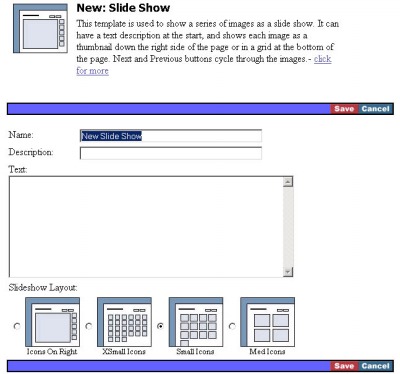
Using the Slide Show Page
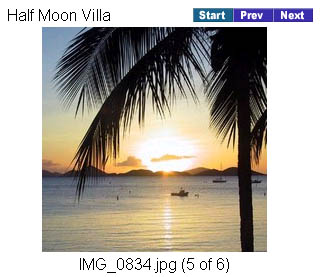
Note: Next and Previous go to other images in the slide show. Start goes back to the initial page that shows the text and grid of thumbnails. |
See Also:
| Online Documentation Home, Invisible Gold Quick Tour, Template Library, Users and Groups, Shopping Cart, Mailing Lists, Uploading Images, Traffic, Approvals, Banner Ads, Login/Logout, Email Newsletters, Advanced Button, Moving Pages, System View, Security, System Settings, Hosting Invisible Gold Powered Websites, Generate a PayPal Client ID, Terms, Useful HTML Guide, Private Client Areas |
Keywords:
| Templates, Slide Show, Photos |
Invisible Gold, LLC was founded in 2001 as a web design and internet software company. The owner, John Waiveris, wanted to enable people to manage their own websites. John is active in the Windsor community and the Invisible Gold website software is used daily by 600 businesses.
Latest News
- Website Performance TestingTwo tools for testing website speed
- Meta Tags vs. Keywords: Your Site's Visibility
- Don't Get Tricked By "Domain Registry of America"The Domain Registry of America has recently sent out a countless number of letters and emails in a campaign to get you to switch to their domain registry service by using language that suggests that your domain will expire, and that in order to prevent losing it, you must register with their company. The email is disingenuous at best and fraud at its worst.
Contact Us
Windsor, CT 06095
(860) 285-0172
support@invisiblegold.com
Your Website Should Be Easy to Edit
2026 © All Rights Reserved. Terms of Service